How to Use iFit on a Treadmill
Using iFit on your treadmill is a fantastic way to transform your workouts. You can easily connect your iFit account to a compatible treadmill by following a few simple steps. This unlocks a world of interactive training programs and virtual routes right in your home gym.
iFit offers a huge variety of workouts, from guided runs with real coaches to scenic outdoor trails across the globe. It makes cardio feel less like a chore and more like an adventure. Many users find this keeps them motivated much longer than traditional treadmill routines.
- Connect your iFit account to your treadmill.
- Select from thousands of interactive workouts.
- Enjoy guided runs and virtual routes.
- Track your progress and set new goals.
- Stay motivated with engaging training.
Ready to get started? Let’s walk through exactly how to get iFit up and running on your treadmill, step by step.
So, you’ve got a shiny new treadmill and a subscription to iFit. That’s awesome! You’re probably wondering how to get them talking to each other. It’s actually quite straightforward and can really spice up your daily runs. Let’s get your iFit connected so you can start enjoying those amazing interactive workouts.
Getting Your iFit Treadmill Up and Running
Connecting your iFit account to your treadmill is like giving your machine a brain upgrade. It unlocks a whole universe of guided programs and virtual adventures. We’ll walk you through the steps to make sure it’s a smooth connection.
Step 1: Ensure Your Treadmill is iFit Ready
First things first, you need to make sure your treadmill is compatible with iFit. Most newer treadmills from brands like NordicTrack, ProForm, and Freespirit come with iFit built-in. Check your treadmill’s manual or the manufacturer’s website if you’re unsure. You’re looking for a built-in touchscreen and Wi-Fi connectivity.
Step 2: Create or Log In to Your iFit Account
If you haven’t already, you’ll need an iFit account. You can usually do this on the iFit website or directly on your treadmill’s console. If you already have an account, just have your login details handy. This account is what syncs your progress and preferences across devices.
Step 3: Connect Your Treadmill to Wi-Fi
Just like your phone or computer, your treadmill needs an internet connection to access iFit. On your treadmill’s console, navigate to the settings menu. You should see an option for Wi-Fi settings. Select your home network and enter your password. A stable connection is key for a smooth workout experience.
Step 4: Log In on Your Treadmill Console
Once your treadmill is connected to Wi-Fi, it’s time to log in to your iFit account directly on the console. Use the touchscreen to enter your username and password. You might be prompted to accept terms and conditions or set up a user profile. This confirms the link between your account and your machine.
Navigating the iFit Interface on Your Treadmill
Once you’re logged in, you’ll see the iFit dashboard. It might look a little different depending on your treadmill model, but the core features are usually the same. This is where the magic happens – choosing your next workout!
Exploring the Workout Library
The iFit workout library is incredibly vast. You can filter workouts by:
- Type of workout: Running, walking, interval training, incline training, etc.
- Duration: From quick 15-minute sessions to longer endurance challenges.
- Trainer: iFit has a whole team of certified trainers, each with their own style.
- Global Routes: Virtually run through famous cities, scenic trails, and more.
Spend some time browsing. You might be surprised by the variety. Many users find that seeing different global locations makes them more excited to train.
Understanding Interactive Workouts
This is where iFit really shines. When you select an interactive workout:
- Your treadmill’s speed and incline will automatically adjust.
- The machine mirrors the terrain shown on the screen.
- Your trainer will guide you through each step.
This means you can focus on your form and effort, not fiddling with buttons. It’s like having a personal trainer right there with you, pushing you along.
Choosing Your First Workout: A Simple Checklist
Feeling a little overwhelmed? That’s normal! Here’s a quick checklist to help you pick your first iFit treadmill session:
- Start easy: Pick a beginner-level workout or a scenic walk.
- Try a trainer: Select a workout led by a trainer whose style you like.
- Consider your goal: Are you looking for cardio, endurance, or a quick burn?
- Check the duration: Match it to how much time you have available.
- Don’t overthink it: Just pick one and give it a go!
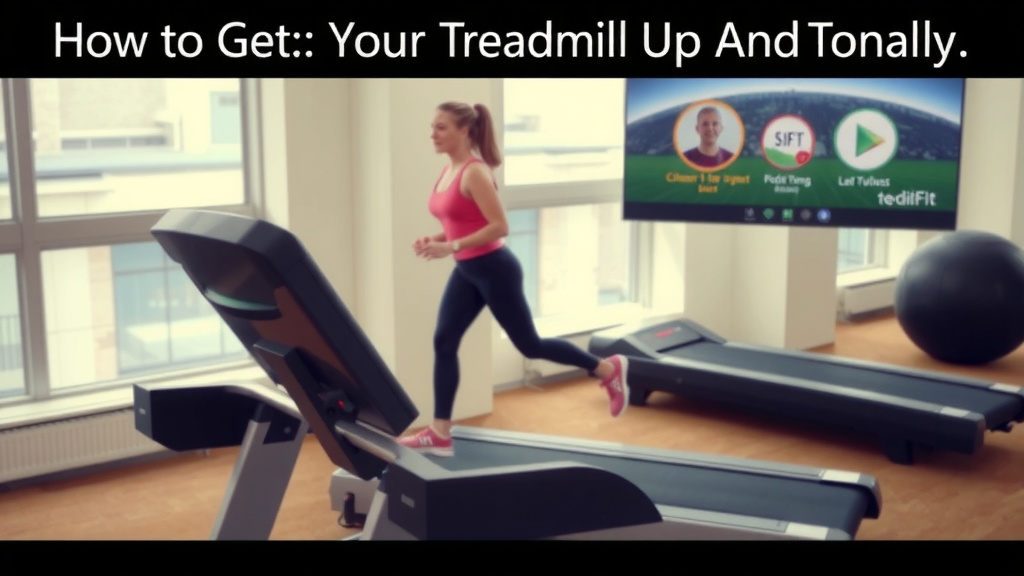
Tracking Your Progress with iFit
Part of what makes iFit so motivating is its ability to track your progress. Every workout you complete is automatically logged in your iFit account.
Viewing Your Workout History
On your treadmill console or the iFit app, you can see a history of all your completed workouts. This includes details like distance, calories burned, duration, and average pace. Looking back at your history can be a powerful motivator. You can see how far you’ve come!
Setting Goals and Staying Motivated
iFit allows you to set personal goals. You can aim to run a certain distance each week, increase your workout duration, or hit a specific calorie burn. Seeing your progress visually can make a big difference in sticking to your fitness routine. Many studies show that goal-setting is key to long-term adherence to exercise programs (CDC).
Understanding iFit Stats
What stats does iFit track? You’ll typically see:
| Metric | What it means |
|---|---|
| Distance | How far you’ve run or walked. |
| Duration | How long your workout lasted. |
| Calories Burned | An estimate of calories used during the session. |
| Average Pace | How quickly you covered a mile or kilometer. |
| Heart Rate | If you have a compatible heart rate monitor, iFit can display this. |
Seeing these numbers build up over time is incredibly rewarding. It shows you the results of your hard work.
Using iFit on your treadmill is designed to be enjoyable and effective. By following these steps, you’ll be well on your way to transforming your home workouts from ordinary to extraordinary. Happy training!
Conclusion
You’ve now got a clear roadmap for getting your iFit treadmill set up and running. We’ve covered connecting your account, navigating the vast workout library, and understanding how iFit tracks your progress. This system is designed to make your workouts more engaging and effective. Don’t just stop here; take that first step and pick a workout to try today. Your fitness journey is about to get a lot more exciting!
Frequently Asked Questions
How do I update my iFit software on my treadmill?
Most iFit-compatible treadmills update automatically when connected to Wi-Fi. If you suspect your software is outdated, check your treadmill’s settings menu for a manual update option. A stable internet connection is key for smooth updates.
Can I use iFit on my treadmill if it doesn’t have a touchscreen?
Typically, iFit requires a built-in touchscreen console for its interactive features. If your treadmill doesn’t have one, you might be able to use a separate tablet or smartphone with the iFit app, but full machine integration may not be possible.
What happens if my Wi-Fi disconnects during an iFit workout?
If your Wi-Fi disconnects during an interactive workout, the machine may stop adjusting automatically. You might be able to continue your workout manually, but you’ll lose the interactive elements and progress tracking until the connection is restored.
How do I switch between different user profiles on my iFit treadmill?
On your treadmill’s console, look for a user profile or account icon. You should be able to easily log out of one profile and log into another. This ensures everyone in your household gets credit for their own workouts.
Can I cancel my iFit subscription if I’m not happy with it?
Yes, you can cancel your iFit subscription. You’ll typically do this through the iFit website or by contacting their customer support. Be sure to check their cancellation policy for any specific terms.