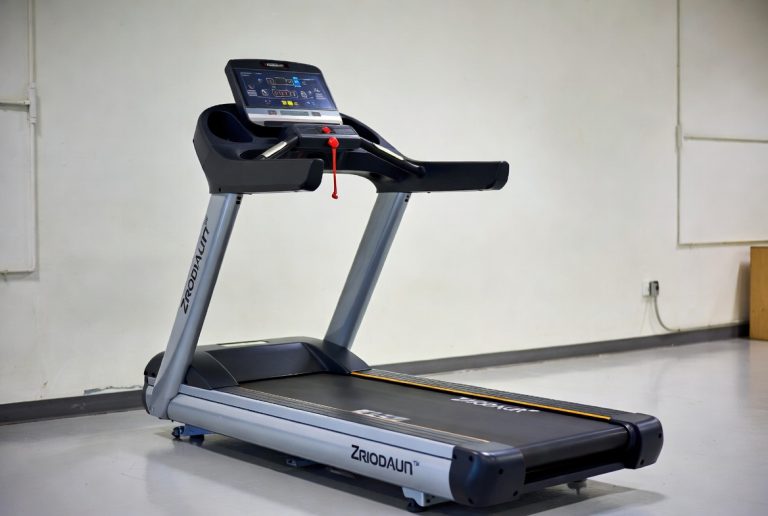

How to Turn On a Peloton Treadmill
Turning on your Peloton Treadmill is simple and takes just a few seconds. You’ll just need to press the power button and wait for the console to boot up. This gets you ready for your next workout in no time.
Many new users wonder about the startup process. We’ve found that understanding these basic steps helps you feel more confident. It ensures your treadmill is ready to go when you are, avoiding any unnecessary delays to your fitness routine.
- Press the power button.
- Wait for the screen to load.
- Connect your account.
- Start your workout!
Let’s walk through exactly how to power up your Peloton Treadmill, step by step.
You’re ready to get your Peloton Treadmill fired up for a fantastic workout! It’s a straightforward process, and once you’ve done it a couple of times, it becomes second nature. Let’s make sure you know exactly what to do.
Getting Your Peloton Treadmill Ready to Run
Starting your Peloton Treadmill is designed to be quick and easy. The main goal is to get you moving without any fuss. We’ll walk through the simple steps needed to bring your machine to life and prepare it for your next fitness session. Think of it like starting your car for a scenic drive—just a few key actions and you’re off!
Locating the Power Button
First things first, you need to find that all-important power button. On most Peloton Treadmills, you’ll find the power button located on the side of the console. It’s usually a physical button, not a touchscreen icon. We recommend checking the right-hand side of your console. It’s often a distinct shape or color to make it easy to spot. Don’t worry if it’s not immediately obvious; a quick feel around the base of the screen will help you locate it.
Pressing the Power Button
Once you’ve found the button, give it a firm, single press. You don’t need to hold it down for an extended period. A quick push is all it takes. You’ll know it’s working when you see the touchscreen light up. This signals that the treadmill is beginning its startup sequence. It’s like waking up your computer; it needs a moment to get ready.
Understanding the Boot-Up Process
After pressing the power button, your Peloton Treadmill will go through a brief boot-up sequence. This is where the system initializes and gets everything ready for you. It’s a bit like your smartphone loading up its operating system each time you turn it on. Understanding what’s happening can make the wait feel shorter.
What to Expect on the Screen
When the treadmill powers on, you’ll first see the Peloton logo appear on the screen. This is followed by the operating system loading. This usually takes anywhere from 30 seconds to a minute. During this time, the console is checking its systems and preparing to connect to your account and the internet. You might see various loading bars or indicators. It’s a good moment to take a deep breath and mentally prepare for your workout. Many users find this brief waiting period helpful for setting their intention for the exercise ahead.
Connecting to Your Account
Once the system has fully booted, you’ll be prompted to log in to your Peloton account. This is where you access your personal profile, workout history, and subscriptions. You can usually do this by entering your email and password directly on the touchscreen. Some users might have their login details saved, making this step even faster. If you’re a new user, this is also where you’d set up your profile. Ensure you have a stable internet connection for a smooth login experience. We found that having your login details handy can save you precious workout minutes!
| Step | Action | Notes |
|---|---|---|
| 1 | Locate Power Button | Usually on the right side of the console. |
| 2 | Press Power Button | A single, firm press is enough. |
| 3 | Wait for Boot-Up | Allow 30-60 seconds for the system to load. |
| 4 | Log In | Use your Peloton account credentials. |
| 5 | Select Workout | Choose your desired class or program. |
Starting Your Workout on the Treadmill
With your treadmill powered on and your account logged in, you’re almost ready to go. The final steps involve selecting your workout and making sure the treadmill is set up correctly for your needs. This is the exciting part, where your fitness journey truly begins for the day.
Navigating to Your Workout
After logging in, you’ll see the main Peloton interface. From here, you can browse through the vast library of live and on-demand classes. You can filter by discipline (running, walking, strength), instructor, music genre, duration, and more. Take a moment to find a class that excites you. Many users recommend starting with a beginner-friendly class if you’re new to Peloton or treadmills in general. Having a clear workout in mind can help prevent decision fatigue once the machine is running.
Adjusting Treadmill Settings
Before you begin your workout, it’s wise to get comfortable with the treadmill’s controls. The console will display your speed and incline settings. You can adjust these using the physical buttons or touchscreen controls on the handlebars. Most Peloton Treadmills have quick-access buttons for common speed and incline changes. For safety, we always recommend starting at a very low speed, or even 0%, and then gradually increasing it as you begin your run or walk. Always ensure you are on the treadmill and have a good grip before starting any movement.
Ready for Your First Step (or Stride!)
You’ve done it! Your Peloton Treadmill is powered on, you’re logged in, and you’ve selected your workout. You’re now perfectly positioned to step onto the belt and begin your chosen activity. Remember, safety is always key. Make sure the treadmill is stationary before you mount it. Once you’re ready, simply press the “Start” button or the appropriate control to begin your class. The belt will start moving, and you’ll be on your way to crushing your fitness goals. Enjoy the ride!
Here’s a quick checklist to ensure you’re ready for your next session:
- Confirm power button is pressed.
- Wait for the console to fully load.
- Log in to your Peloton account.
- Select your preferred workout.
- Adjust speed and incline as needed.
- Start your workout safely.
Conclusion
You’ve successfully learned how to power on your Peloton Treadmill. Remember, it’s a simple process: locate the power button, give it a single press, and allow the console to boot up. After logging into your account, you’re ready to select and start your workout. We’ve found that mastering these basic steps ensures you can jump into your fitness routine quickly and confidently. Your next great workout is just a few moments away!
Frequently Asked Questions
How long does it take for the Peloton Treadmill to turn on?
The boot-up process for your Peloton Treadmill typically takes between 30 seconds and a minute. You’ll see the Peloton logo appear, followed by the operating system loading. This brief wait allows the console to prepare for your workout and connect to your account.
What if I can’t find the power button on my Peloton Treadmill?
We often find the power button is located on the right-hand side of the treadmill’s console. It’s usually a physical button rather than a touchscreen icon. If you have trouble spotting it, try feeling around the base of the screen for a distinct shape or color.
Do I need an internet connection to turn on my Peloton Treadmill?
Yes, you’ll need a stable internet connection to log in to your Peloton account once the treadmill powers on. The treadmill uses this connection to access your profile, download class content, and track your progress.
Can I use the Peloton Treadmill without logging into my account?
While you can power on the treadmill, you cannot access classes or personalized features without logging into your Peloton account. The login step is essential for a full Peloton experience, allowing you to browse workouts and track your fitness journey.
What should I do if my Peloton Treadmill screen doesn’t turn on after pressing the power button?
If your screen remains blank after pressing the power button, first ensure it’s plugged in securely. If it is, try a slightly longer press of the power button, about 2-3 seconds. If it still doesn’t power on, you may need to consult your user manual or contact Peloton support for further assistance.