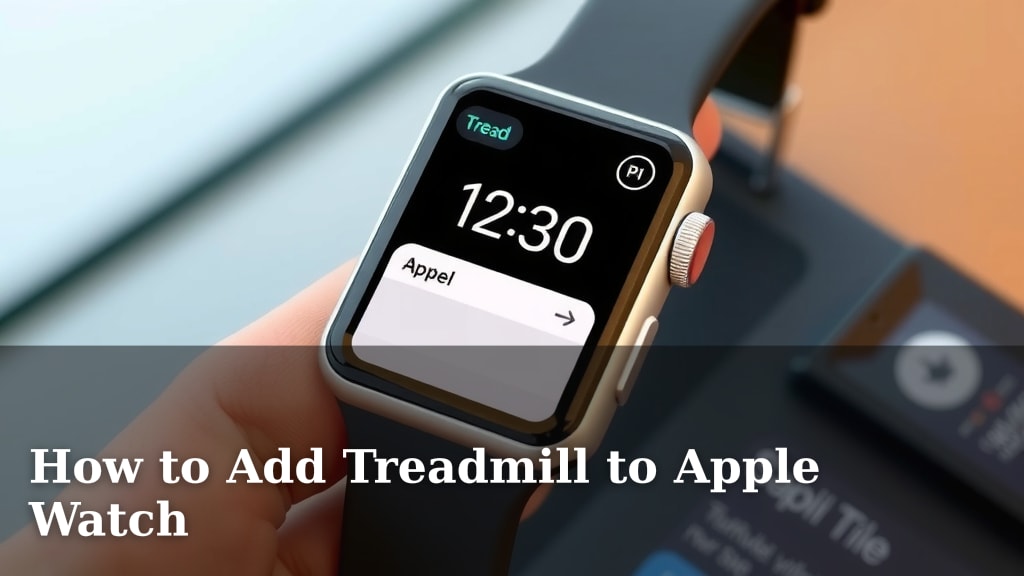
How to Add Treadmill to Apple Watch
Adding your treadmill workouts to your Apple Watch is surprisingly simple. You can automatically track your runs, walks, and other cardio sessions by pairing them correctly. It helps you get a clearer picture of your fitness progress without manual entry.
Many people wonder if their watch can detect treadmill activity on its own. While some newer models offer automatic workout detection, manual starting ensures accuracy. You’ll want to know the best way to start and end your workouts. This guide will show you how to get your Apple Watch working with your treadmill.
- Start your treadmill workout directly on your Apple Watch.
- Ensure your watch is updated for the best features.
- Manual starts are usually more accurate than automatic detection.
- Check your workout metrics after you finish.
- Keep your watch software up-to-date.
Ready to see your treadmill efforts reflected on your wrist? Let’s walk through exactly how to get your Apple Watch connected and tracking your progress.
“`htmlConnecting Your Apple Watch to Treadmill Workouts
Getting your Apple Watch to track your treadmill sessions is a straightforward process. You want your watch to be an accurate fitness companion. This guide will show you exactly how to start and end your workouts for the best results.
Starting Your Treadmill Workout on Apple Watch
Manually starting your workout on your Apple Watch ensures the most accurate tracking. While your watch has automatic detection for some activities, it’s best to initiate treadmill sessions yourself.
Choosing the Right Workout Type
Open the Workout app on your Apple Watch. Scroll through the list of available activities. Look for options like “Indoor Run” or “Walking.” Some people might even use “Elliptical” if their treadmill offers that type of motion.
How to Manually Start a Workout
Tap on your chosen workout type. Your watch will count down for a few seconds. This is your chance to hop on the treadmill. Once the countdown finishes, your workout begins. You’ll see metrics like time, distance, pace, and calories burned displayed on your screen.
Using the “Other” Workout Type
What if you can’t find the exact workout you’re doing? The Apple Watch offers an “Other” option for activities not specifically listed. This mode tracks your heart rate and calories burned. It assumes a general cardio effort. For most treadmill use, “Indoor Run” or “Walking” is a better choice.
Optimizing Your Apple Watch for Accuracy
To get the most precise data, a few settings and practices can help. Think of these as fine-tuning your watch for peak performance on the treadmill.
Ensuring Software is Up-to-Date
Apple frequently releases software updates. These updates often include improvements to workout tracking and accuracy. Make sure your Apple Watch and iPhone are running the latest versions of watchOS and iOS. You can check for updates in the Watch app on your iPhone under “General” > “Software Update.” Keeping your software current is a **smart move** for reliable data.
Calibrating Your Apple Watch
Calibration helps your Apple Watch learn your stride and pace. This is especially important for treadmill running. For outdoor runs, your watch uses GPS to measure distance. On a treadmill, it relies on your arm movements and stride. To calibrate, take at least a 20-minute brisk walk or run outdoors with your watch. This provides a baseline for distance and pace (Apple Support).
Even with indoor workouts, calibrating can improve accuracy over time. The more you use your watch for running and walking, the better it gets at estimating your effort.
Wearing Your Watch Correctly
For accurate heart rate readings, your Apple Watch needs to sit snugly on your wrist. It shouldn’t be too loose, but it also shouldn’t feel uncomfortable. Research shows that proper fit is **key for sensor accuracy** (Mayo Clinic). Place it about a finger’s width above your wrist bone.
Understanding Treadmill Metrics on Your Watch
Once you’re working out, your watch displays a wealth of information. Knowing what these numbers mean helps you understand your progress.
Key Metrics You’ll See
Your screen will typically show:
- Time: How long you’ve been exercising.
- Distance: How far you’ve gone. For treadmills, this is estimated.
- Pace: How quickly you’re moving.
- Calories Burned: An estimate of energy expenditure.
- Heart Rate: Your pulse during the workout.
When to Check Your Data
You can glance at your wrist anytime during your workout. For a detailed summary, wait until you finish. After you stop your workout, your watch will present a full breakdown. You can also find this information later in the Fitness app on your iPhone.
A Quick Checklist for Treadmill Success
Here’s a simple checklist to ensure you’re ready for your next treadmill session with your Apple Watch:
- Update Software: Make sure watchOS and iOS are current.
- Select Workout: Choose “Indoor Run” or “Walking.”
- Start Manually: Initiate the workout on your watch before you begin.
- Snug Fit: Wear your watch properly for heart rate accuracy.
- Calibrate if Needed: Take an outdoor run to help with distance estimates.
- Review Metrics: Check your summary after each workout.
Troubleshooting Common Issues
Sometimes, things don’t go as planned. If your watch isn’t tracking correctly, don’t worry. There are a few common solutions.
Inaccurate Distance or Pace
If your distance or pace seems off, recalibration might be needed. Also, ensure you’re starting the correct workout type. Sometimes, a simple restart of your watch can resolve minor glitches.
Heart Rate Sensor Not Working
Make sure your watch band is snug. Clean the back of the watch and your wrist. If the problem persists, contact Apple Support.
“`Conclusion
You’ve now seen how simple it is to connect your treadmill workouts with your Apple Watch. By manually starting the correct workout type and ensuring your watch is properly calibrated and worn, you get accurate fitness data. This tracking helps you understand your progress better. Keep your software updated for the best performance. Your Apple Watch is a great tool to motivate your treadmill sessions. Get started with these steps and make every workout count!
Frequently Asked Questions
Will my Apple Watch automatically detect my treadmill workout?
While newer Apple Watch models can automatically detect some workouts, manual initiation is more reliable for treadmill sessions. Starting the “Indoor Run” or “Walking” workout yourself ensures your watch captures all the key metrics accurately from the start.
How do I calibrate my Apple Watch for better treadmill distance tracking?
To calibrate, take at least a 20-minute brisk walk or run outdoors with your Apple Watch. This helps your watch learn your stride and pace. Even if you primarily use a treadmill, this outdoor calibration provides a baseline for more accurate distance estimations indoors.
What is the best workout type to select on my Apple Watch for the treadmill?
For the most accurate tracking, select “Indoor Run” or “Walking” from the Workout app. These specific modes are designed to capture the metrics relevant to your movement on a treadmill.
My heart rate seems inaccurate during my treadmill workout. What should I do?
Ensure your Apple Watch is snug on your wrist, about a finger’s width above your wrist bone. Also, make sure the back of your watch and your wrist are clean. A proper fit is key for the heart rate sensor to function correctly.
Can I see my treadmill workout data after I finish?
Yes, absolutely! Once you end your workout on your watch, a summary will appear. You can also find a more detailed breakdown of your treadmill sessions in the Fitness app on your iPhone.